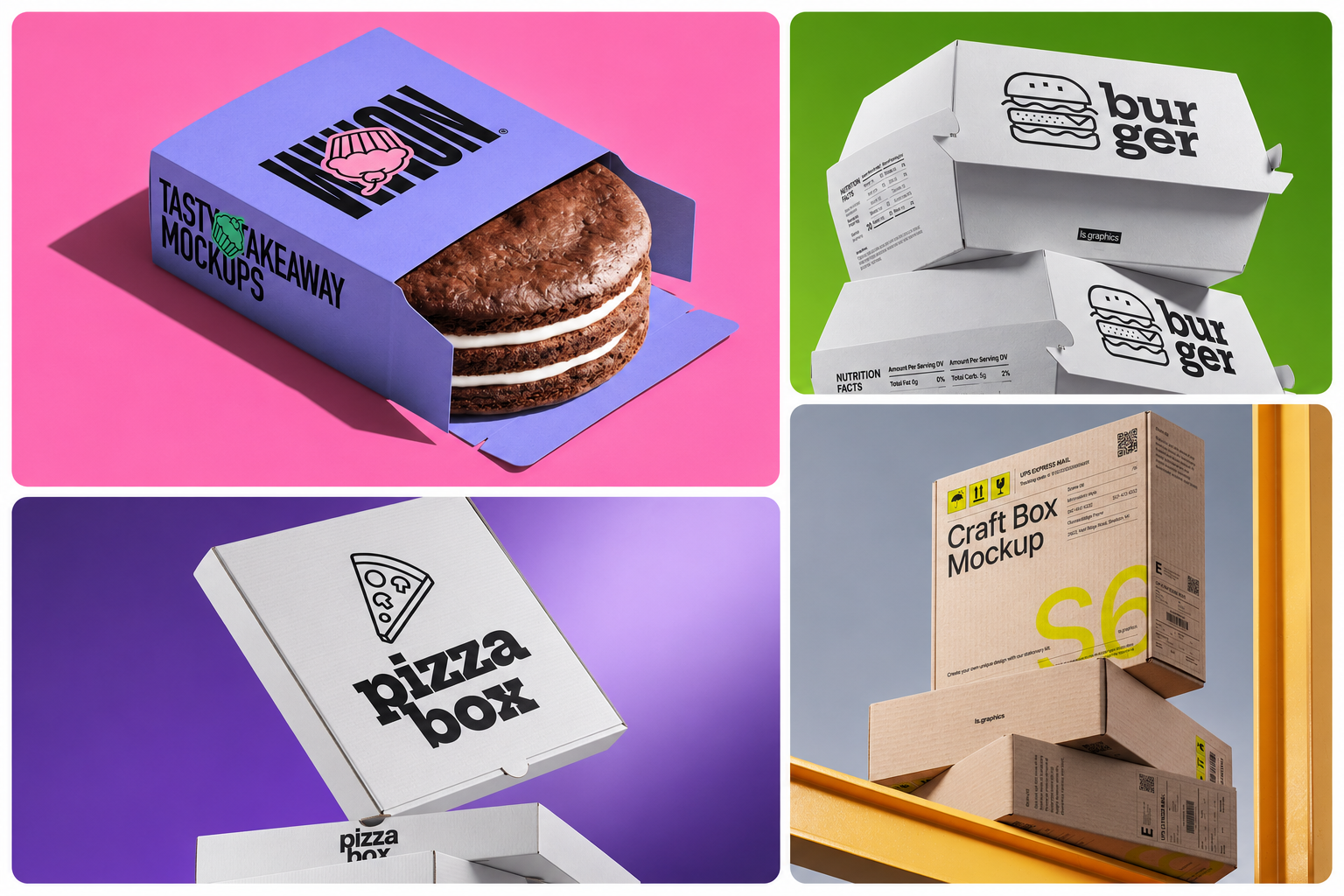
How to Create Realistic Mockup Boxes for Professional Product Presentations
A packaging layout shows the artwork. A realistic box mockup shows how that artwork works across the finished package: the front panel, the lid, the corners, and the surfaces a customer will handle.
For a client review, those details make design decisions easier to assess. In a portfolio or product presentation, they give the packaging a clear sense of shape and scale. The starting point is a scene that matches the package you intend to produce.
What Makes a Box Mockup Look Realistic?
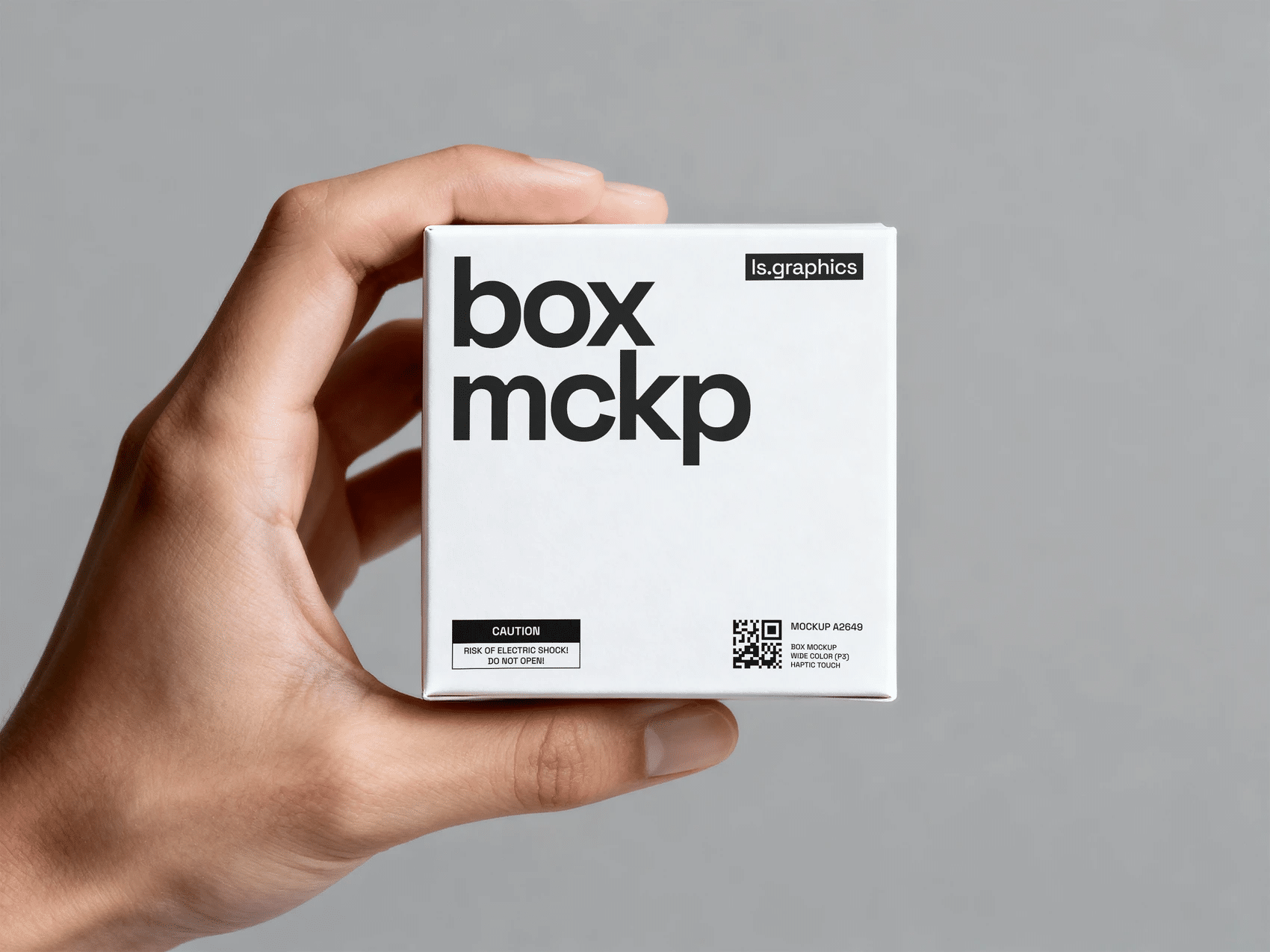
Perspective, lighting, and material need to work together. Artwork should follow each panel without stretching, and shadows should make the box feel grounded on its surface.
Match the finish to the packaging. Uncoated cardboard, glossy laminate, and kraft board reflect light differently. Strong highlights can make a paper surface look plastic; excessive texture can interfere with small type.
Inspect folds, lid seams, and corners after placing the design. A pattern that changes direction unexpectedly at an edge, or artwork that covers a seam incorrectly, can make an otherwise convincing scene feel unfinished.
How to Create a Realistic Box Mockup Step by Step
1. Match the box construction. Choose the right proportions and structure: a folding carton, rigid gift box, or mailer. A tall cosmetics carton will misrepresent a shallow electronics package, even with the correct artwork.
2. Prepare clean panel artwork. Use the production dieline as a reference and export at the dimensions the template requires. Remove cutting guides and annotations from presentation images. Preserve the intended margins around folds.
3. Place each panel separately. Check the front, sides, lid, and interior where editable areas are provided. Follow the intended orientation of patterns and inspect the lid in both open and closed views when available.
4. Review perspective and scale. Let the template map the artwork to its surfaces. If a logo looks stretched, check the source proportions and selected box shape before making adjustments.
5. Set the lighting and background. Begin with a simple backdrop. Where controls allow, adjust shadows and reflections so the print stays readable and the finish remains believable.
6. Inspect at two sizes. Zoom in to check seams, fine type, and alignment. Then review the image at its intended display size to see whether the design still reads clearly.
7. Export for the destination. Set the output size for the slide, portfolio layout, or product listing. Use a sufficiently detailed source; enlarging a small preview will not recover missing detail.
A presentation mockup helps communicate appearance. Keep production dimensions, print colors, and finishing specifications in the separate artwork approval process.
Where Can I Create a Realistic Box Mockup Online?
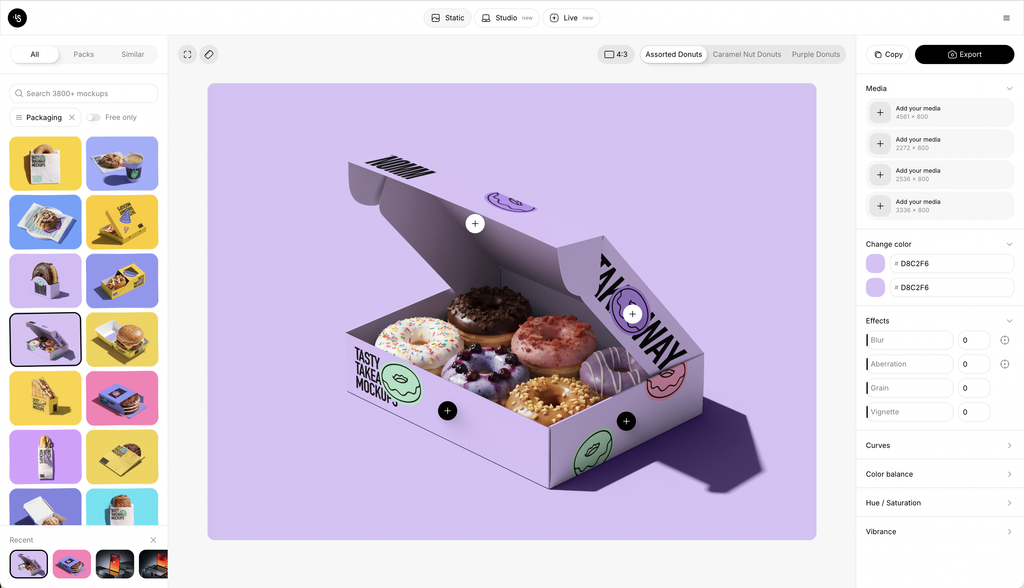
A browser editor is useful when you want to prepare packaging visuals without opening Photoshop. Select a compatible scene, upload the artwork, fit it to the editable areas, and review the result.
The online mockup generator by ls.graphics is one option to explore. Check the selected scene’s box construction, editable panels, and export options before preparing the full presentation.
For supported templates, an online workflow handles artwork placement without requiring you to edit Smart Objects directly. This can be convenient for comparing colorways or replacing a label after client feedback. More specific changes depend on the controls available in that scene.
What Are the Best Box Mockups for Professional Packaging Presentations?
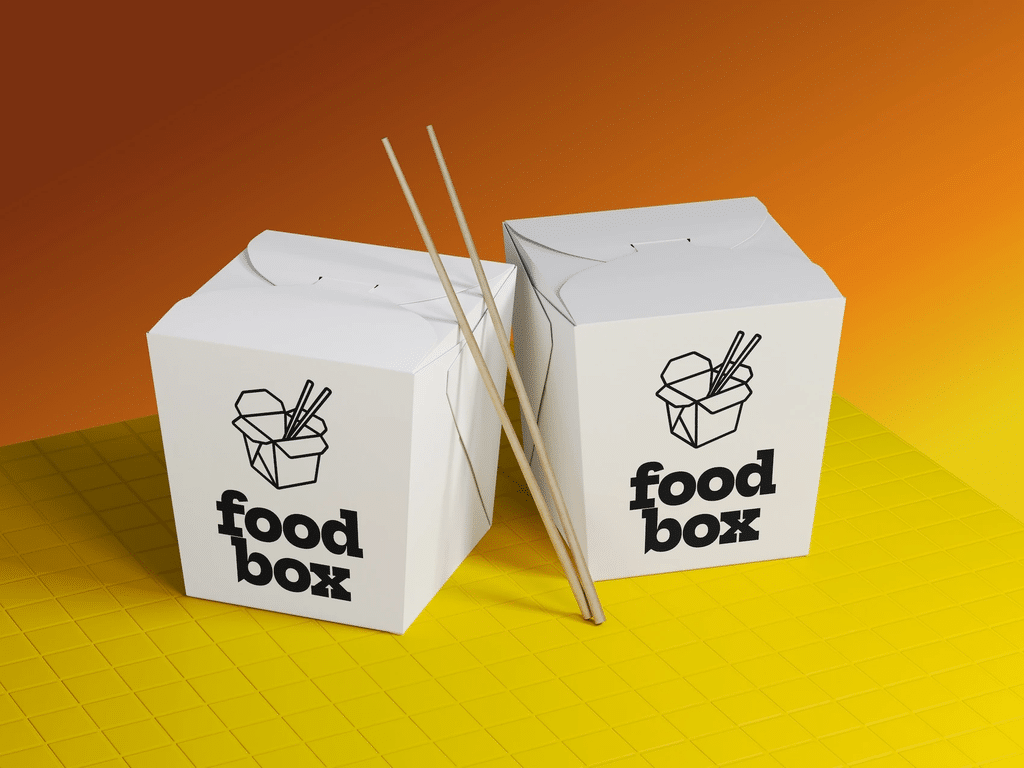
The most useful packaging box mockup shows what the viewer needs to understand. When browsing mockup boxes, start with construction and viewing angle.
• Minimal studio scenes keep typography, color, and hierarchy visible during design reviews.
• Lifestyle scenes give campaign and portfolio images context. Choose relevant props that leave the packaging easy to inspect.
• Open and closed views show the exterior and what appears when the lid opens, including interior printing or inserts.
• Shipping and mailer scenes help present delivery packaging. Check the flap structure and cardboard treatment.
• Multiple-box compositions show a product range. Keep relative sizes consistent with the actual packages.
A close-up can help explain a surface finish. An open view is more useful when the interior is central to the concept. Choose the view according to the detail you need to show. Whether you are preparing a product for sale or choosing a thoughtful present, exploring creative gift packaging ideas can also help you understand how presentation influences the overall impression.
Which Box Mockup Resources Are Easiest to Customize for Branding Projects?
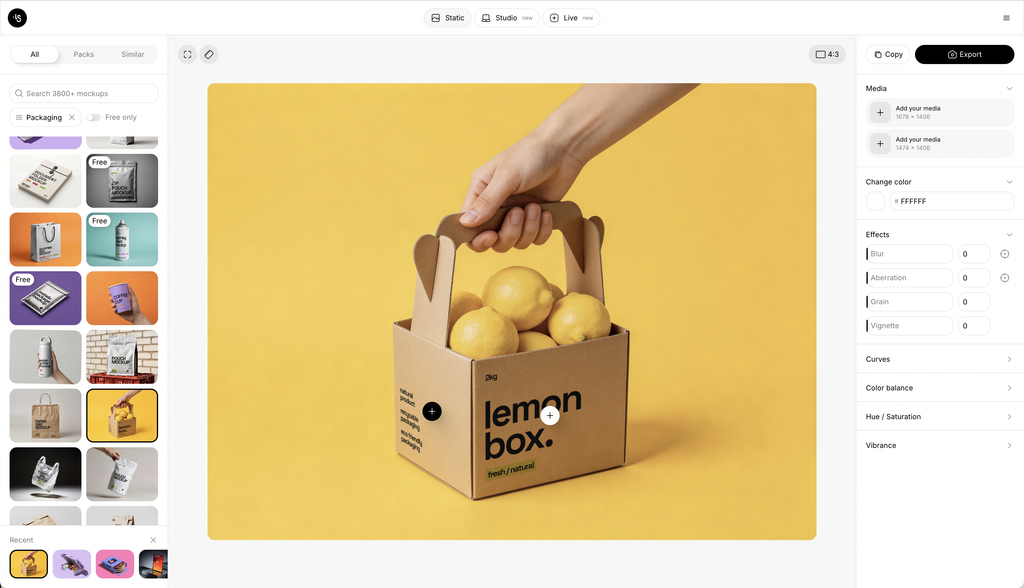
Check editability before judging the preview. Confirm which panels accept artwork, whether the background can change, and how much control you have over the material treatment.
PSD box mockups suit designers who already work in Photoshop and need access to individual elements. A template may provide separate artwork, shadow, highlight, and background layers. Some files offer much less control, so read the description before downloading.
Online mockup generators are convenient for uploading artwork and producing repeat versions through a browser. They can simplify routine revisions, though detailed retouching may require controls the editor does not provide.
You can find both options on ls.graphics: downloadable PSD box mockups for Photoshop and box scenes you can edit online. Check the selected resource’s available formats and controls to choose the workflow that fits your project.
Think about the next likely change. Comparing three label designs calls for easy artwork replacement. Refining one reflection calls for access to that particular element, whether through editor settings or editable layers.
How to Make a Box Mockup Presentation Feel Professional
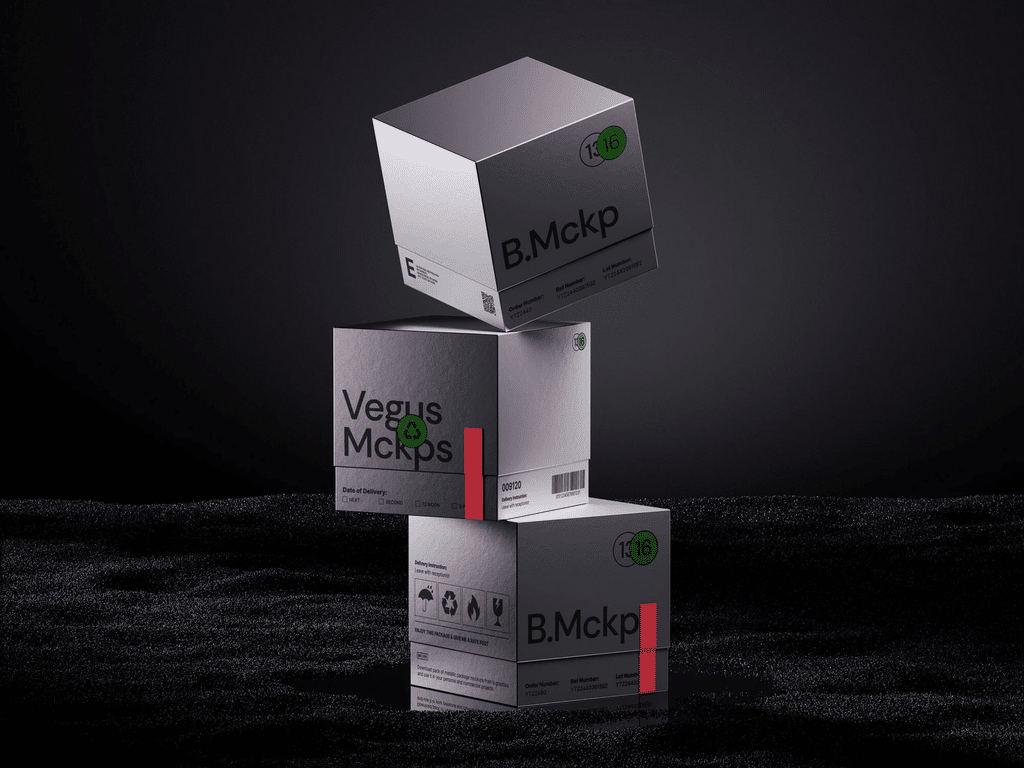
Build a short sequence with a purpose for each image: an overall view to establish the package, another angle to explain its structure, and a close-up to show a relevant detail.
Keep lighting, background treatment, and object scale consistent. Make sure the package remains distinct from the backdrop and important artwork stays visible.
For client reviews, use readable panels and comparable angles so different design options are easy to assess. A portfolio allows more expressive compositions, provided viewers can still inspect the work. For e-commerce, represent the actual package accurately and check the destination’s image requirements.
Conclusion
Realistic mockup boxes begin with the right construction, correctly placed artwork, and lighting that suits the material. Once those foundations are sound, choose views that explain the design. A useful presentation lets someone understand the package, compare options, and give specific feedback.